
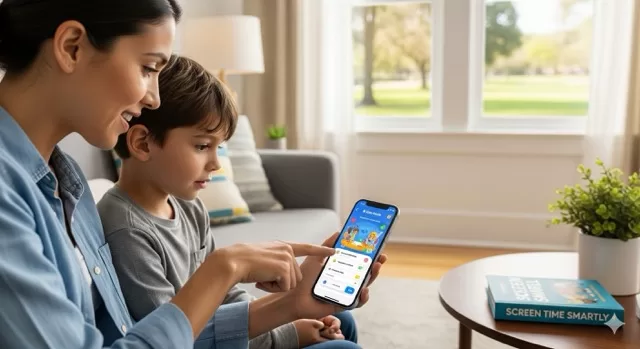

There is no official age at which a child should get a first smartphone, so decide by purpose and readiness, not by what other kids have. Start with why they need it, choose the simplest device that meets that need, and set it up before you hand it over: a child account, app approvals, screen-time limits, and a review of which apps can see location. Agree on family rules in advance, keep some places and times phone-free, and keep talking about what they see online. The settings help, but the conversations do most of the work.
A first phone arrives with a lot of decisions, and most advice online is about the device. The bigger risks are the apps on it and what those apps collect. This guide covers a real case, how to decide whether and what to buy, how to set up parental controls on iPhone and Android, and how to prepare your child.
A Real Example: A Kids’ App That Collected Location
In September 2025, the Federal Trade Commission took action against Apitor Technology, a China-based company that sells programmable robot toys for children ages 6 to 14. The toys connect to a free companion app on a phone. According to the FTC, Apitor built a third-party software kit called JPush into the app, and the kit’s developer could collect location data and use it for any purpose, including advertising.
The FTC says Android users had to turn on location sharing to use the app and connect their toy, and after download, the app began collecting and sharing precise location data with the third party’s servers, without the knowledge of children or their parents. The FTC alleges the company failed to notify parents and get their consent before collecting, or causing a third party to collect, location data from children under 13, despite privacy policy claims that it complied with the children’s privacy law. The proposed settlement includes a $500,000 civil penalty that is suspended because the company cannot pay, plus a requirement to delete data collected in violation of the rule. These are allegations and a proposed settlement, not court findings. FTC, “FTC Takes Action Against Robot Toy Maker for Allowing Collection of Children’s Data without Parental Consent” (September 2025).
The point for parents: a harmless-looking app can ask for a permission it doesn’t need to work well, and a child will usually tap “allow.” The phone you choose matters less than which apps are on it and what you’ve approved.
Is Your Child Ready? There’s No Official Age
The U.S. Surgeon General’s advisory on social media and youth mental health, which we reviewed, gives no specific age or readiness standard for a phone or social media account. Its only related language is that parents should teach children about technology and “empower them to be responsible online participants at the appropriate age.” Source: U.S. Surgeon General, “Social Media and Youth Mental Health” (content last reviewed February 2025).
So there’s no number to follow. Questions we’d ask instead, as practical advice rather than expert guidance:
- Can your child follow family rules without constant reminders?
- Do they tell you when something online upsets them?
- What specific need does the phone meet: reaching you after school, getting to activities, or contacting family?
Start With the Purpose, Then Pick the Device
If the purpose is calls, texts, and reaching you in an emergency, a basic phone may be enough, and it leaves out most of the risks below. If your child needs maps, messaging, or school apps, a smartphone makes sense, and the setup steps below matter more. We couldn’t find a source for matching device types to specific ages, so we don’t. Practical points, from general experience rather than a source:
- A first phone doesn’t need to be the newest. Refurbished, certified pre-owned, budget, and hand-me-down models can all work.
- A sturdy case or water resistance helps, and a warranty may be worth considering.
- Check that the model still receives security updates from its maker. For privacy settings worth reviewing on any phone, see turning off hidden tracking.
Set Up Parental Controls Before the First Day
Both major phone platforms have built-in tools. The details change, so check the maker’s current help pages.
iPhone. Apple’s help page says parents set up Family Sharing and create a child account, and it’s “important that your child has their own Apple Account.” From there you can:
- Set Screen Time schedules and daily limits by app category.
- Set age-based ratings for apps, music, movies, and more through Content & Privacy Restrictions.
- Use Ask to Buy to approve downloads, and Ask to Browse to approve new websites.
- Limit who your child can contact during Screen Time.
- Turn on Communication Safety, which can blur photos or videos with detected nudity, gore, or violence in Messages and FaceTime.
Apple says Ask to Buy and Ask to Browse are on by default for children under 13 and Limit Adult Websites is on by default for children under 18, but defaults vary by region. Source: Apple Support, “Set up parental controls to manage your child’s iPhone or iPad”.
Android. Google’s Family Link help page says parents can create an account for a child or add supervision to an existing one, and supervise Android 6.0+ devices and Chromebooks. Parents can choose which apps a child can download, adjust app permissions, set a bedtime or daily limits, limit mature content on Google Play, and view the child’s device location. Google notes that iPhones and iPads “can’t be supervised with Family Link.” Purchase approvals apply only to purchases made through Google Play’s billing system. Source: Google Family Link Help, “Get started with Family Link”.
Carrier family tools exist too, but we didn’t review any.
Don’t rely on controls alone. No filter catches everything, and kids find workarounds. Treat controls as a safety net under a conversation, not a replacement. See our guide to safe search engines and browsers for kids.
Check the Apps and Their Permissions
The FTC explains that the children’s privacy law, COPPA, covers websites, online services, and apps directed to children under 13, and that covered services must get a parent’s consent before collecting a child’s personal information. The FTC lists location, photos, videos, audio, and persistent identifiers like IP addresses among the information that counts. Parents can read the company’s privacy policy, decide whether they’re comfortable with it, review the information collected, and withdraw consent and have it deleted. If you think a site or app collected a child’s information unlawfully, report it at ReportFraud.ftc.gov. Source: FTC, “Protecting Your Child’s Privacy Online” (updated May 2026).
The FTC’s page doesn’t cover app permission settings, so what follows is our advice:
- Approve apps yourself, using Ask to Buy or Family Link, so you see each app before it lands on the phone.
- Review permissions for location, camera, microphone, and contacts, and turn off what an app doesn’t need. The Apitor case is the reason.
- Skip apps you can’t vet. If you can’t tell what an app collects or who makes it, don’t install it.
Set Family Ground Rules Early
The Surgeon General’s advice for parents is to create a family media plan to establish healthy technology boundaries at home, to create tech-free zones and encourage in-person friendships, and to model responsible behavior. Our suggestions for what to put in the plan: where the phone sleeps at night, no phones at meals, what the child will do if something upsets them, and what happens if rules are broken. Write it down and review it as your child grows.
For the broader picture of social apps, see our parent’s guide to social media safety.
Teach the Basics Before They Need Them
Short, regular talks work better than one big lecture. Cover:
- Scams and phishingPhishing A scam that uses fraudulent emails, texts, or websites to trick you into revealing personal information.. Show them examples of text scams and how to spot a phishing message.
- Cyberbullying. Make sure they know to save evidence and tell you. See talking to your kids about cyberbullying.
- Fake images and videos. See our guide to identifying AI-generated fakes.
- Pressure and blackmail. Tell them they won’t be in trouble for coming to you. Our guide to what to do if someone is blackmailing you online explains what to do if a photo is used to pressure them.
- Oversharing. Birthdays, school, and location give strangers material to work with.
A Quick Checklist Before You Hand It Over
This is our own list, not an official standard:
- Child account created and phone updated
- Screen-time limits and app approvals on
- App permissions reviewed, location off unless needed
- Passcode set, and you know it
- Two-factor authenticationTwo-Factor Authentication Login security requiring two forms of verification, such as a password plus a code. It’s the most common form of multi-factor authentication. on the child’s main account; see our 2FA guide
- Family media plan written and agreed
- Your child knows who to tell and that they won’t lose the phone for telling you
People Also Ask
There’s no official age. The Surgeon General’s advisory we reviewed gives no age and refers only to the “appropriate age” for being a responsible online participant. Decide based on purpose and readiness.
If you only need calls and texts, yes. It avoids most app and social media risks. A smartphone makes sense once your child needs maps, messaging, or school tools.
They help with app approvals, time limits, and content settings, and both Apple and Google offer them. They can be bypassed and miss things, so pair them with regular conversations.
No. Google says iPhones and iPads can’t be supervised with Family Link. iPhones use Apple’s Family Sharing and Screen Time.
We don’t have a source that settles this. A middle path is to be open about what you can see and why, rather than monitoring in secret. See our post on spyware for why covert apps are risky.
For apps directed to children under 13, the FTC says parents can review collected information, limit sharing, and withdraw consent and have the data deleted.
Sources: Federal Trade Commission, “FTC Takes Action Against Robot Toy Maker for Allowing Collection of Children’s Data without Parental Consent” (September 2025); Federal Trade Commission, “Protecting Your Child’s Privacy Online” (updated May 2026); U.S. Surgeon General, “Social Media and Youth Mental Health” (reviewed February 2025); Apple Support, “Set up parental controls to manage your child’s iPhone or iPad”; Google Family Link Help, “Get started with Family Link”