
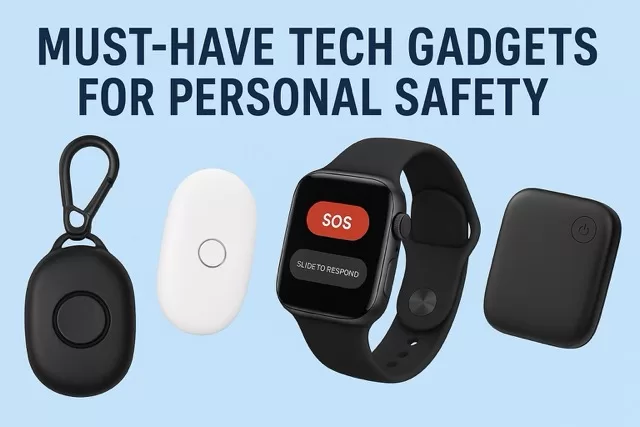

A personal safety gadget helps only if it is set up before you need it, you know what it does and does not do, and you can use it under stress. Start with the device you already own (a phone or smartwatch with emergency features switched on), then add a tracker, alarm, or power bank only for a specific need. Every connected gadget also collects location data and can be misused, so check its settings and privacy practices as carefully as its features.
What a safety gadget can and cannot do
Most safety gadgets do one of three jobs: call for help, share your location, or make noise to draw attention. None of them replaces judgment, and the manufacturers say so. Apple’s own page on Fall Detection states that the watch “cannot detect all falls,” that high-impact activity can trigger a false alert, and that the feature depends on a satellite, cellular, or Wi-Fi Calling connection (Apple Support, “Use Fall Detection with Apple Watch”, May 2026).
Treat any gadget as one layer. Before buying, ask three questions:
- What problem is this solving? A parent who wants to find a child after school has a different need than someone who walks home late or a relative who lives alone.
- What does it need to work? A phone connection, a subscription, a charged battery, location services turned on?
- Who else can see the data? Location history, contact lists, and audio can sit in an app account. That account needs a strong, unique password and two-factor authenticationTwo-Factor Authentication Login security requiring two forms of verification, such as a password plus a code. It’s the most common form of multi-factor authentication., covered in our two-factor authentication guide.
Smartwatches with emergency features
A smartwatch can place an emergency call or alert contacts without taking out your phone. Apple’s Fall Detection is the best-documented example I could verify, so here is how it behaves on that platform (other brands differ, so check your own watch’s support page):
- If the watch detects a hard fall and you are moving, it sounds an alert and waits for your response. It does not call automatically.
- If you are immobile for about a minute, a 30-second countdown begins. If it ends, the watch calls emergency services and messages your emergency contacts with your location.
- Fall Detection works on Apple Watch SE, Series 4 or later, and Ultra. It turns on automatically for users 55 and older and is available only to users 18 and older. You can turn it on in the Watch app under My Watch > Emergency SOS.
- Your emergency contacts come from your Medical ID, so a feature that is “on” does nothing useful if that list is empty or out of date.
Check before you rely on it: confirm the age in your Health profile, add emergency contacts, and test the Emergency SOS gesture so you know what it feels like. If a call is triggered by mistake, Apple says not to hang up and to tell the responder you do not need help.
Item trackers, and the problem of being tracked
Bluetooth item trackers like Apple AirTag are built to find keys, bags, and luggage. They have a second use that matters for personal safety: someone can slip one into your bag or car. Apple and Google both built alerts for this, and both ask you to turn on certain settings.
On iPhone (Apple Support, “Detect unwanted trackers”, Feb 2026): AirTags and other Find My accessories trigger alerts on iOS 14.5 or later. Trackers that follow the industry specification for detecting unwanted location trackers trigger alerts on iOS 17.5 or later. To receive alerts, keep Location Services, Find My iPhone under System Services, and Bluetooth on, allow Tracking Notifications, and keep airplane mode off.
On Android (Google, “Find unknown trackers”, no date shown on the page): the feature needs Android 6 or later. You can scan manually under Settings > Safety & Emergency > Unknown tracker alerts > Scan now. Automated alerts need Location on.
If you get an alert:
- Tap the notification and use Play Sound (on iPhone, Find Nearby if offered) to locate the tracker. On Android, Google says playing the sound does not notify the owner.
- If you cannot hear it, check jacket pockets, outer bag compartments, and your vehicle.
- Take screenshots of the tracker and owner details for your records.
- Use the on-screen instructions to disable it. After that the owner can no longer see its location.
- If you cannot find it and feel unsafe, go to a safe public place and contact law enforcement.
Google adds one point worth knowing: turning off Bluetooth or Location on your phone does not stop the tracker from sharing its location.
If you suspect a tracker is only one part of a larger monitoring problem, our spyware and stalkerware guide covers what to do on your phone, including the safety-first order of steps.
GPS watches and trackers for children
A GPS watch can give a parent peace of mind and give a young child a way to call home. It also collects a child’s precise location, which makes the privacy side more important than the feature list.
The FTC has acted on this. In April 2018 it sent warning letters to two companies, Gator Group (maker of the Kids GPS Gator Watch) and Tinitell, saying their services appeared to be aimed at children and to collect precise geolocation without giving direct notice or obtaining verifiable parental consent as the COPPA Rule requires (FTC, “FTC Warns Gator Group, Tinitell that Online Services Might Violate COPPA”, April 27, 2018). These were warning letters, not findings of a violation. The point for buyers is simple: a kids’ watch is an online service as well as a gadget.
Before buying one:
- Read the privacy policy for what location data is collected, who receives it, and how you delete it. Our first smartphone guide explains what COPPA means for parents and links the FTC’s parent page.
- Check whether the watch needs a subscription and what happens to the account if you stop paying.
- Set a strong password on the parent account and turn on two-factor authentication.
- Explain to your child what the watch does. A child who knows a parent can see their location is less likely to feel spied on.
For social apps, messaging, and screen time on a first phone, see our parent’s guide to social media safety.
Personal safety alarms
A personal alarm is a small device that makes a loud sound when you pull a pin or press a button. Some pair with a phone and send your location to chosen contacts. I could not find a government or standards source evaluating personal alarms, so I am not making claims about how well they deter anyone. What follows is my own practical advice:
- Pick one you can activate with one hand, without looking.
- Carry it where you can reach it, not at the bottom of a bag.
- Test it once so the sound does not surprise you.
- If it connects to an app, check that the app’s permissions and account security are as strong as the device.
Power banks, door sensors, and dash cams
These do not share a source, so I am labeling this section as general advice:
- Portable chargers. A phone at 3% cannot call, share a location, or receive a tracker alert. A small power bank and a short cable in your bag or glove box cost little and support every other item on this list.
- Door and window sensors. They notify your phone when a door opens. They connect to your home network, so keep their firmware updated and place them on a guest or separate network, as our IoT and smart home guide and Wi-Fi guide explain.
- Dash cams and wearable cameras. Recording laws differ by state and country, especially for audio and for filming people in public. Check your local rules before you rely on one, and protect the footage and the app account like any other personal data.
Secure the gadget itself
Every connected gadget is a small computer that holds your location and sometimes your contacts. Before you leave it in a bag or on a child’s wrist:
- Create the account with a unique password from your password managerPassword Manager Software that securely stores and generates strong, unique passwords for all your online accounts..
- Turn on two-factor authentication.
- Install updates when offered.
- Review what the app can access and turn off what it does not need. Our guide to turning off hidden tracking on your phone walks through permissions.
- Before you sell, give away, or recycle a device, remove your data first. See how to safely delete your personal data from an old device.
Frequently asked questions
I could not find an official source measuring that. An alarm may draw attention, but no gadget guarantees a result. Treat it as one tool, along with awareness of your surroundings and sharing your plans with someone you trust.
It can, if the right settings are on. iPhones running iOS 14.5 or later alert for AirTags, and Android 6 or later can scan for unknown trackers. Keep Location and Bluetooth on, and check the pages above for the exact steps.
It can help, but Apple states that the watch cannot detect all falls and needs a connection to call for help. Make sure emergency contacts are set up and the person has tested the feature. It works best alongside regular check-ins.
They can be, but the safety depends on the company’s privacy practices as well as the hardware. The FTC has warned makers of children’s GPS watches about collecting precise location without parental consent. Read the privacy policy and secure the parent account.
That depends on where you live and on whether audio is recorded. I do not have a legal source for this post, so check your state or country’s rules before relying on one.
Not necessarily. Your phone’s emergency features, location sharing with trusted contacts, and a charged battery cover the basics. Add a gadget only for a need you can name.
Sources: Apple Support, “Use Fall Detection with Apple Watch” (May 2026); Apple Support, “Detect unwanted trackers” (February 2026); Google Android Help, “Find unknown trackers”; Federal Trade Commission, “FTC Warns Gator Group, Tinitell that Online Services Might Violate COPPA” (April 2018); Federal Trade Commission, “Disclosures 101 for Social Media Influencers” (November 2019)
Leave a Reply
You must be logged in to post a comment.