
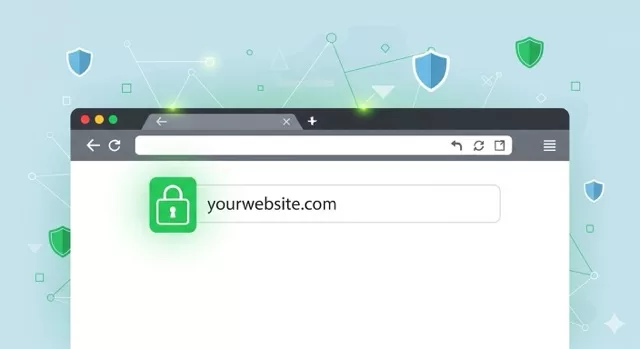
Quick answer: HTTPS encrypts the data traveling between your browser and a website, so passwords, card numbers, and everything else you type can’t be read or tampered with by anyone else on the network. Before entering anything sensitive, check that the address bar shows a padlock and starts with https:// — if it doesn’t, don’t log in or enter payment information.
Every time you browse the internet, your device and the website you’re visiting are constantly exchanging data — searches, logins, messages, payment details. The question is what happens to that data in transit, and whether someone else on the same network could read it. That’s the problem HTTPS was built to solve.
The good news is that HTTPS is now the overwhelming default: as of mid-2026, roughly 98.6% of human web traffic is encrypted, according to Cloudflare Radar data. But “almost universal” still leaves gaps — and those gaps are exactly where things go wrong, whether it’s an outdated site that never upgraded or an app that quietly failed to verify its own encryption.
A Real Example: When “Encrypted” Wasn’t Actually Encrypted
In 2014, the FTC settled separate complaints against Fandango and Credit Karma after finding that both companies’ mobile apps had disabled a critical step in the encryption process called SSL certificate validation — the check that confirms your connection is genuinely going to the real server, not an imposter intercepting it in between. Because that check was turned off, the apps’ connections were vulnerable to interception on any network an attacker controlled, including open Wi-Fi.
According to the FTC, this exposed Fandango users’ credit card numbers, email addresses, and passwords, and exposed Credit Karma users’ Social Security numbers, full names, dates of birth, and credit report details. Both companies believed their apps were encrypted — the padlock-equivalent indicators looked fine — but the verification step that made the encryption trustworthy had been silently switched off. Both settlements required years of independent security audits going forward.
The lesson isn’t just “use HTTPS.” It’s that encryption only protects you if it’s implemented correctly — which is exactly why checking for the padlock yourself, every time, on every page, remains worth the two seconds it takes.
What Is HTTPS?
HTTPS (Hypertext Transfer Protocol Secure) is the encrypted version of HTTP, the protocol your browser uses to communicate with websites. The difference comes down to one thing: encryption.
- With plain HTTP, your data travels in readable plain text. Anyone with the right tools on the same network — including public Wi-Fi at a coffee shop or airport — can potentially see what you’re sending.
- With HTTPS, that data is scrambled so only your device and the website’s server can read it.
You can confirm a site is using HTTPS by checking for:
- A padlock icon in your browser’s address bar
- A URL that begins with
https://rather thanhttp://
Modern browsers also actively warn you when a page isn’t secure, typically labeling it “Not Secure” directly in the address bar.
Why It Protects More Than Just Your Credit Card
- Secures sensitive data. Logins, emails, and payment details are unreadable to anyone intercepting the connection.
- Prevents eavesdropping on public networks. On open Wi-Fi, a technique called packet sniffing lets an attacker on the same network passively capture unencrypted traffic — HTTPS makes that traffic useless to them even if they capture it.
- Protects the integrity of the page itself. Without encryption, attackers on the network can inject malicious code or ads directly into the page you’re viewing, even if the site’s content is otherwise legitimate.
- Signals trust. Google has confirmed HTTPS is a ranking factor, and most people now instinctively distrust sites flagged as “Not Secure.”
What “Not Secure” Actually Means — And What to Do About It
When your browser flags a site as “Not Secure,” it means the connection isn’t encrypted — anything you type could theoretically be read by someone else on the network. The page may still load and function normally, which is what makes this warning easy to ignore. Don’t.
- Never enter a password, card number, or personal information on a page flagged this way.
- Check if a secure version exists by trying the address with
https://typed manually — some sites support it but don’t redirect automatically. - Look for an alternative if the site handles anything sensitive and has no HTTPS option at all — in 2026, there’s essentially no technical excuse for a site not to offer it, since free certificate services have made HTTPS free and automatic for site owners.
- Close the tab if you’re unsure and the stakes are high (banking, medical, financial).
If You Already Entered Information on an Unsecured Site
- Change the password for that account immediately, and anywhere else you reused it.
- Enable two-factor authentication on the account if it isn’t already active.
- Check your bank or card statement for unfamiliar charges if you entered payment information, and contact your card issuer directly if you see anything you don’t recognize.
- Monitor the account for unusual activity over the following weeks — interception doesn’t always get exploited immediately.
Staying Safe Going Forward
- Check for the padlock before logging in or entering personal information — every time, not just on unfamiliar sites.
- Use a VPN on public Wi-Fi. It encrypts your entire connection, not just traffic to HTTPS sites, adding protection even against network-level attacks.
- Keep your browser updated. Modern versions enforce stricter HTTPS rules and increasingly block insecure connections by default; older, unpatched browsers don’t get these protections.
- Turn on “Always Use Secure Connections” in your browser’s settings if available — it forces HTTPS whenever possible and warns you clearly when it isn’t.
People Also Ask
No. HTTPS protects data in transit between you and a website, but it doesn’t verify that the website itself is trustworthy or protect you from phishing sites — scammers can and do get HTTPS certificates for fake sites too. Check the actual domain name, not just for the padlock.
It’s rare but possible, typically through implementation mistakes (like the disabled certificate validation in the Fandango/Credit Karma case) rather than breaking the encryption itself. This is why keeping software updated matters — patches frequently fix exactly these kinds of implementation flaws.
HTTPS protects the content of your connection to that specific site, but it doesn’t hide which sites you’re visiting or protect other unencrypted traffic on the same network. A VPN adds a broader layer of protection, which matters more on public or untrusted Wi-Fi.
Mostly outdated infrastructure or neglect — free, automated certificate services have removed the cost and technical barriers that once made HTTPS difficult to implement. A legitimate, actively maintained site with no HTTPS option in 2026 is unusual enough to be treated as a red flag on its own.
The padlock confirms your connection to that specific server is encrypted — it does not confirm the site is trustworthy. Check the domain name carefully for lookalike spellings, and verify the site independently if you weren’t expecting to land there.
Sources: Cloudflare Radar, HTTPS Adoption data (2026); Federal Trade Commission, press releases on the Fandango, LLC and Credit Karma, Inc. settlements (2014); Cybersecurity and Infrastructure Security Agency (CISA), Tips for Using Public Wi-Fi
Related Posts:

Leave a Reply
You must be logged in to post a comment.